My Marketplace
My Marketplace is where you manage your public presence on the Autohive Marketplace. Access it by clicking your profile picture in the bottom-left sidebar and selecting My Marketplace.
My Marketplace has two tabs: Listings and Profile.
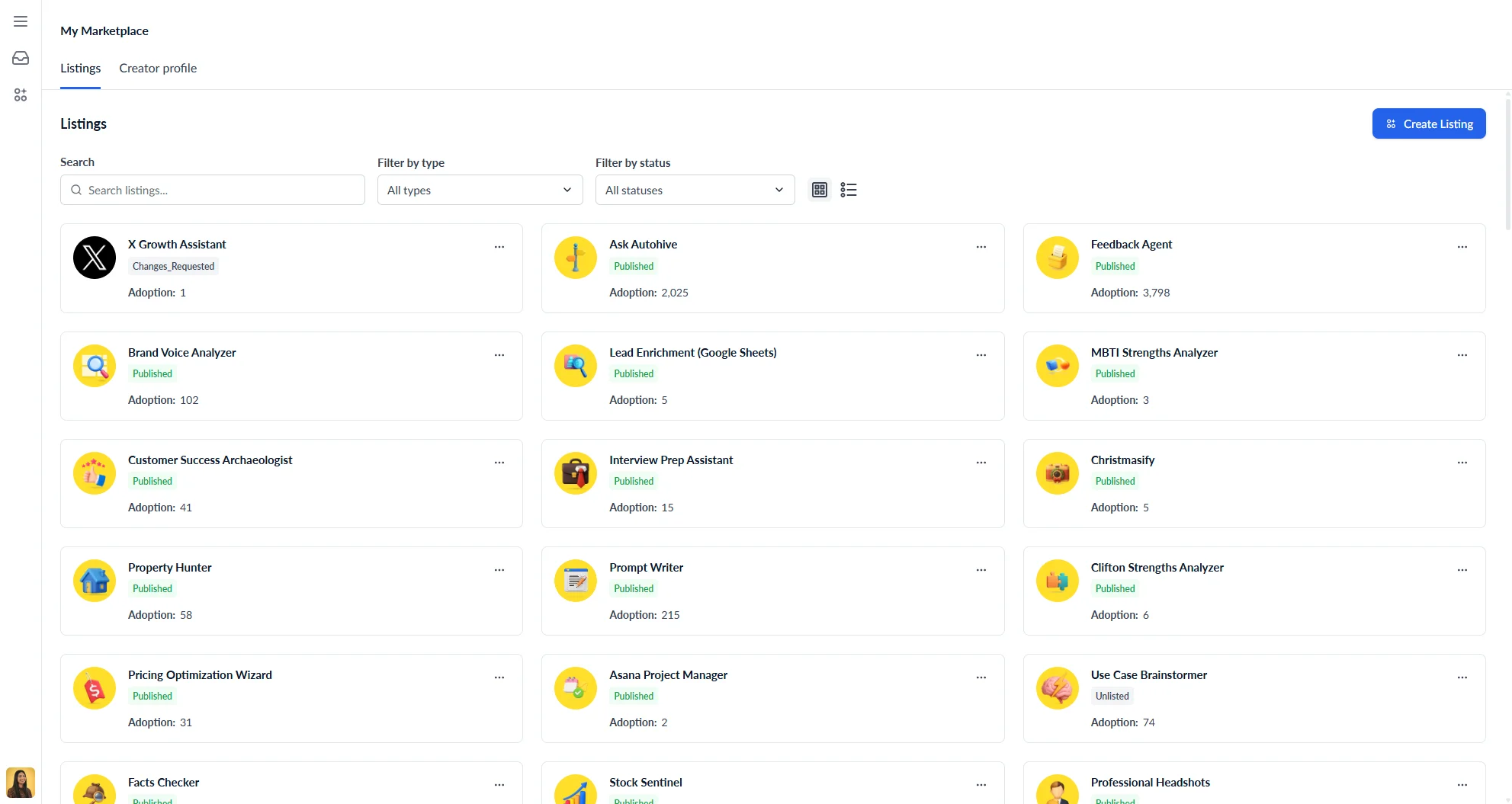
Listings tab
The Listings tab shows all the agents you have submitted or are preparing to submit to the Marketplace.
Filtering and searching
When you have at least one listing, you can filter and search your listings using:
- Search — filter by listing name
- Filter by type — filter by listing type
- Filter by status — show only Published, Draft, Pending, or Declined listings
You can also switch between grid and list views.
Listing statuses
| Status | What it means |
|---|---|
| Draft | Work in progress — not yet submitted for review |
| Pending | Submitted and waiting for the Autohive team to review |
| Changes requested | The reviewer has requested changes before approval |
| Published | Live and visible on the Marketplace |
| Unlisted | Previously published, but hidden from the Marketplace |
| Declined | Rejected by the reviewer |
Creating a listing
Click Create Listing to open the item selector. Choose the agent you want to list on the Marketplace, then click to proceed.
The listing form opens in draft mode, where your progress auto-saves as you work.
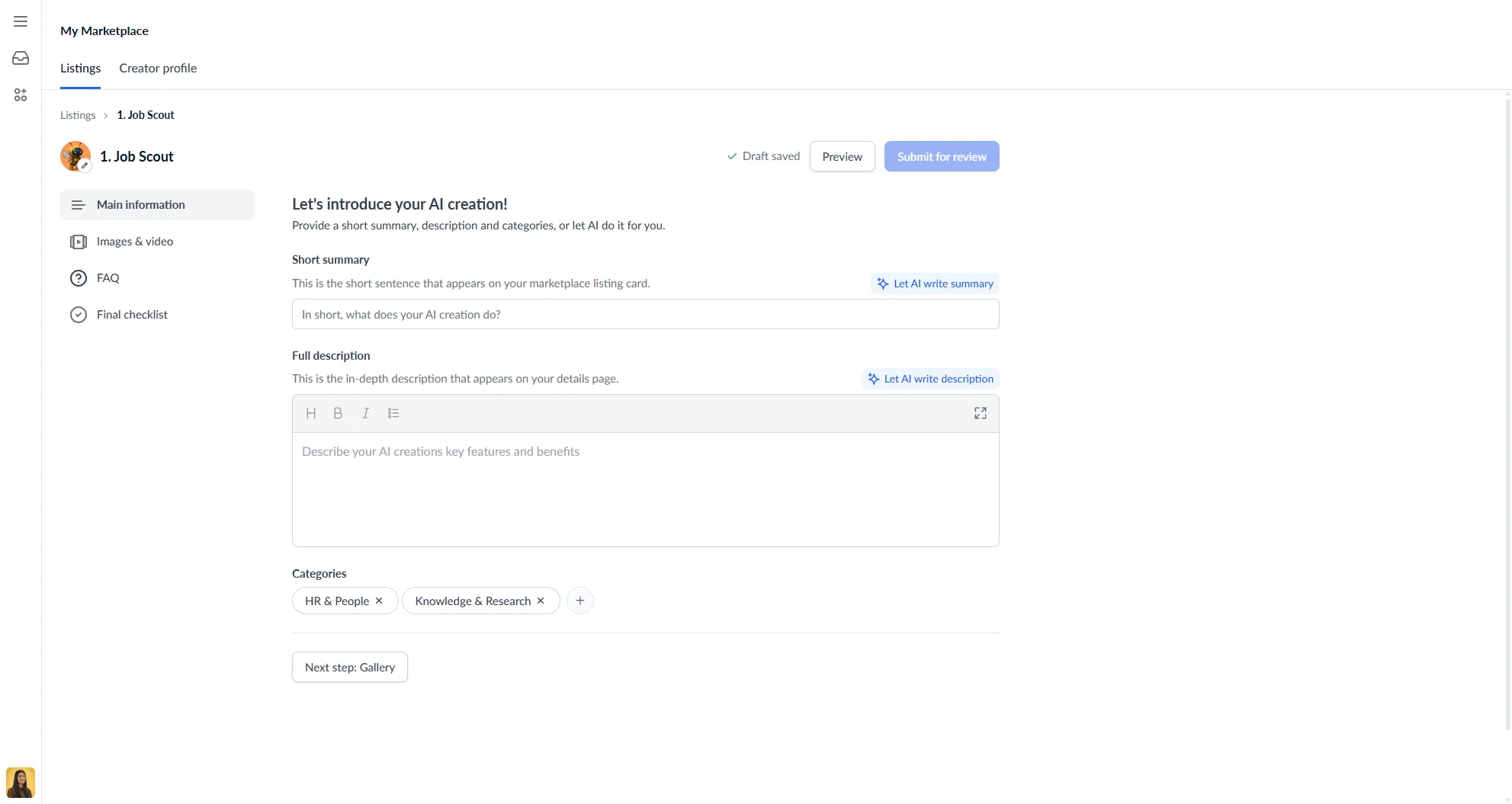
Filling in your listing
The listing form is divided into four sections, accessible from the left sidebar:
Main information
Introduce your creation to potential users.
| Field | Description |
|---|---|
| Short summary | A short sentence shown on your listing card in the Marketplace |
| Full description | An in-depth description shown on your listing’s detail page |
| Categories | One or more categories that describe what your listing does |
Both the short summary and full description have an AI generate button. Click Let AI write summary or Let AI write description to generate content automatically based on your agent. You can edit the generated content before submitting.
The full description editor also has an expand option to open a larger editing modal.
Images & video
Upload screenshots, demo images, or videos to showcase your listing. A minimum of 2 media items is required before you can submit. The first item in the list is used as the featured image. Drag items to reorder them.
FAQ
Add optional question and answer pairs to help users understand your listing. FAQ items are not required to submit.
Final checklist
Before submitting, the Final checklist shows whether you have met the minimum requirements:
- Main information — short summary, full description, and at least one category must be filled in
- Images & video — at least 2 media items must be uploaded
The Submit for review button becomes active once all checklist items are complete.
Submitting for review
Once your listing is complete, click Submit for review. Your listing status changes to Pending while the Autohive team reviews it.
You can click Preview at any time to see how your listing will appear on the Marketplace before submitting.
After submission
Changes requested
If the reviewer requests changes, your listing status changes to Changes requested and you will see the reviewer’s feedback at the top of the form. Make the requested updates and click Submit for review again.
Published
Once approved, your listing status changes to Published and it becomes visible on the Marketplace.
In edit mode (for a published listing):
- All four sections are shown simultaneously — no sidebar navigation
- An explicit Save button replaces auto-save — click it to save your changes
- Click Submit for review after saving to submit your updated listing for re-review
Unlisting a published listing
To remove a published listing from the Marketplace without deleting it:
- Open the listing in edit mode
- Scroll to the bottom and click Unlist from Marketplace
- Confirm the action
The listing status changes to Unlisted. It is no longer visible on the Marketplace but can be relisted at any time.
Creator Profile tab
Your Creator profile is your public page on the Autohive Marketplace. It displays alongside your listings and lets users learn more about you.
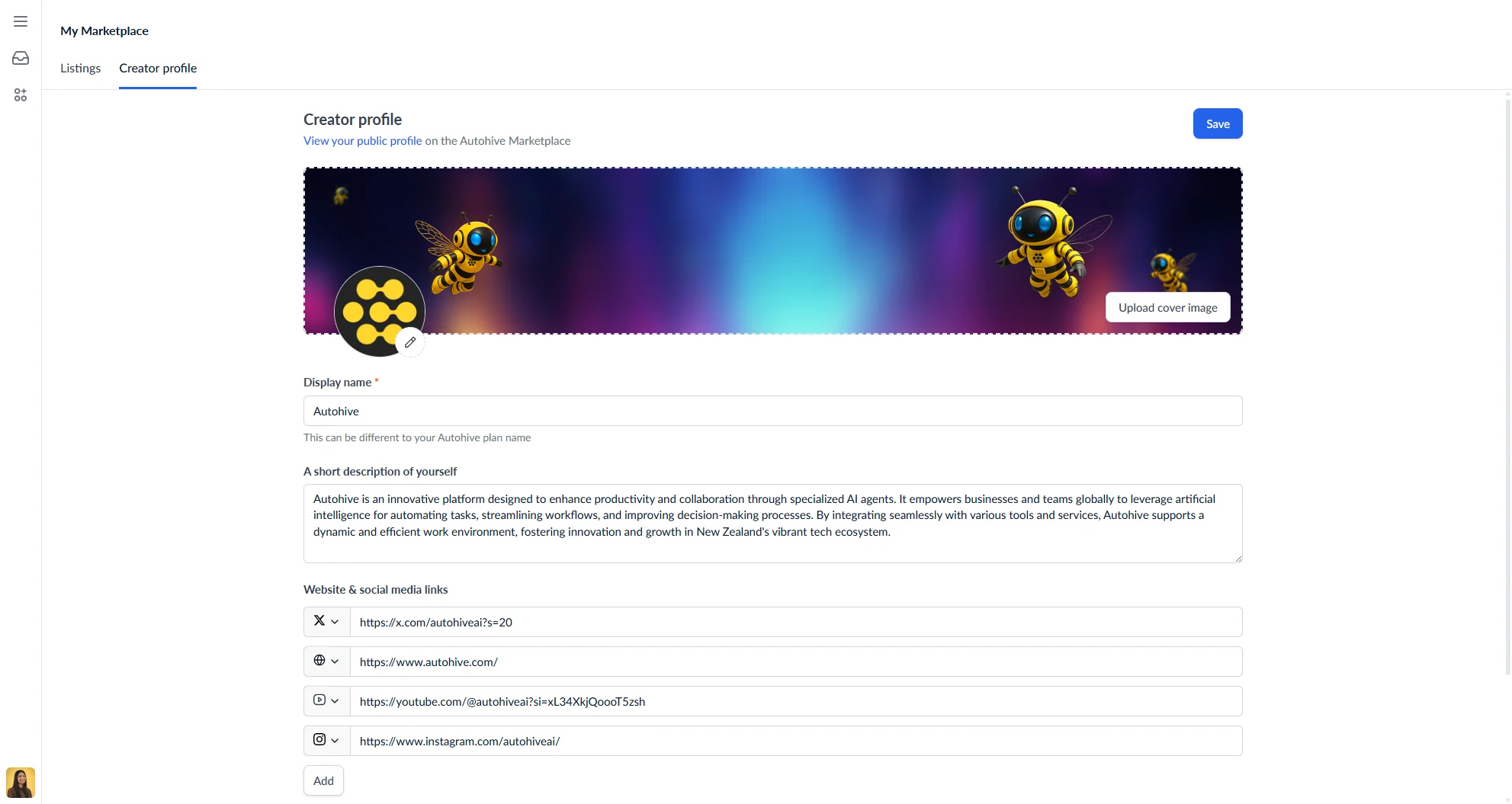
Creator Profile fields
| Field | Description |
|---|---|
| Cover image | A wide banner image shown at the top of your profile (recommended 1920 × 330 px, max 2 MB) |
| Avatar | Your profile picture (circular) — click the image or the edit button to upload |
| Display name | The name shown publicly on your profile (can be different from your plan name) |
| Short description | A brief bio shown on your profile page |
| Website & social media links | Links to your X, YouTube, Instagram, or website profiles |
You can add multiple social links by clicking Add. Click Save to apply your changes.
Once saved, a link to view your public profile is shown at the top of the page.