Audit Log
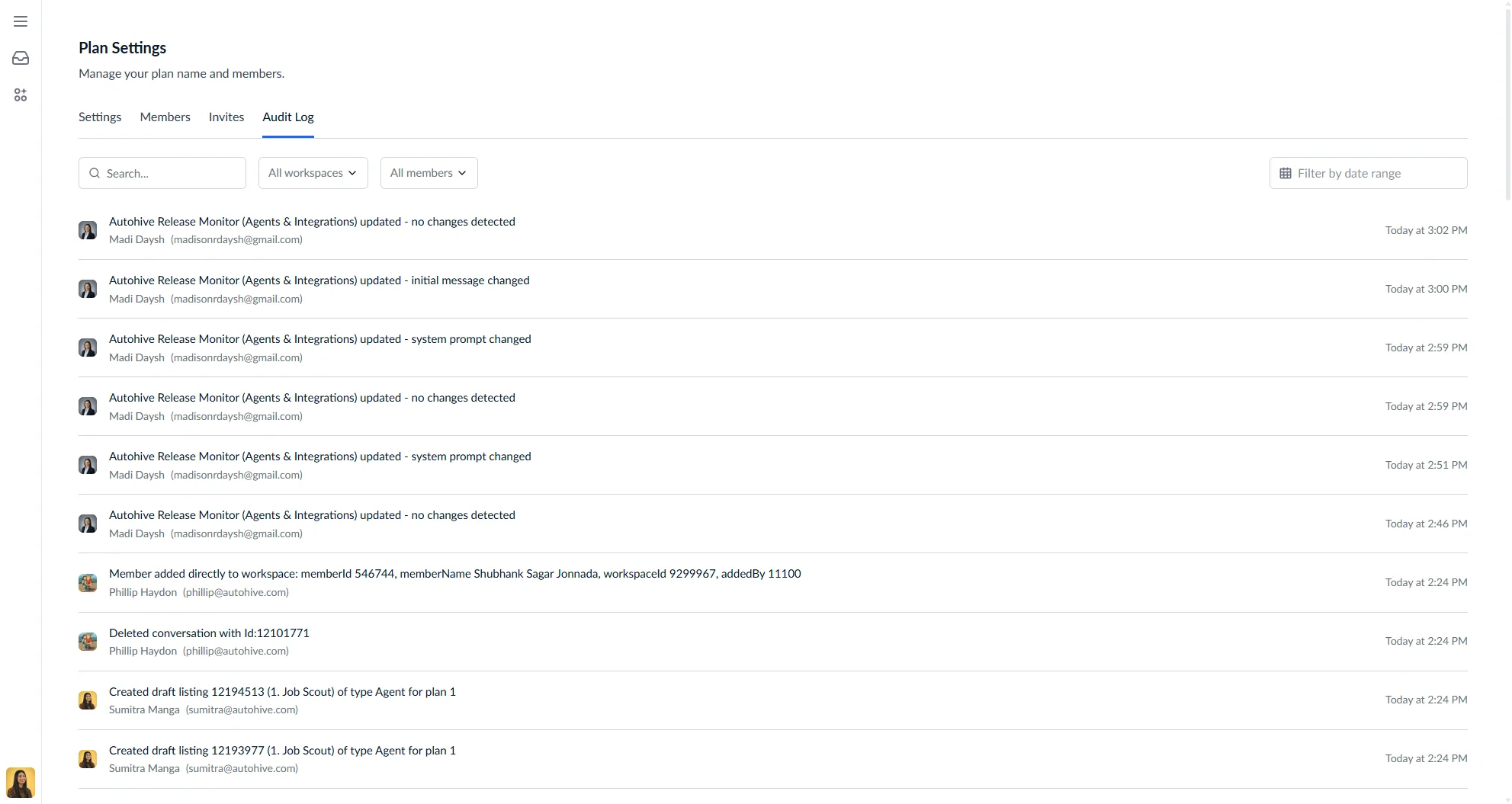
The Audit Log gives plan owners complete visibility into all activity happening across their organisation. This is your central hub for monitoring actions, investigating changes, and maintaining accountability.
 ---
---Who can access the Audit Log?
The Audit Log is exclusively available to plan owners. This ensures that sensitive activity data is only visible to those with the highest level of responsibility for the plan.
If you’re not seeing the Audit Log tab in your plan settings, you may not have plan owner privileges. Contact your plan owner if you need access to audit information.
How to access the Audit Log
- Click on your Plan Settings from the sidebar navigation.
- Select the Audit Log tab.
What’s recorded in the Audit Log?
The Audit Log captures a comprehensive record of significant actions taken within your plan. This includes activity from all workspaces, including private ones, giving you full visibility across your entire organisation.
Types of activity you can expect to see
| Category | Examples |
|---|---|
| Workspace management | Workspaces created, renamed, or deleted; members joining or leaving workspaces |
| Team changes | Members added to or removed from the plan; members invited to workspaces |
| Scheduled jobs | Jobs created, deleted, duplicated, or toggled on/off |
| Webhooks | Webhooks created, deleted, or status toggled |
| Settings changes | Workspace names updated; invite tokens cancelled |
Each log entry includes:
- What happened — A clear description of the action
- Who did it — The team member who performed the action, with their avatar and email
- When it happened — The date and time, displayed in your local timezone
- Source context — Additional context about where the action occurred
Searching and filtering
The Audit Log provides powerful filtering options to help you find exactly what you’re looking for.
Search
Use the search box to find specific entries by keyword. The search looks through the log messages, making it easy to find actions related to specific members, workspaces, or activities.
Filter by workspace
Use the workspace filter dropdown to narrow down entries to a specific workspace. Select All workspaces to see activity across your entire plan.
Filter by member
Use the member filter dropdown to view only actions performed by a specific team member. This is useful for reviewing an individual’s activity or investigating who made a particular change.
Filter by date range
Use the date picker to view activity within a specific time period. This is helpful for:
- Investigating issues that occurred on a specific day
- Reviewing activity during a particular week or month
- Generating compliance reports for specific periods
Cross-workspace visibility
An important feature of the Audit Log is that it shows activity from all workspaces within your plan, including private workspaces. This ensures plan owners maintain oversight of their entire organisation, regardless of workspace privacy settings.
Tips for using the Audit Log
- Regular reviews — Check the Audit Log periodically to stay informed about changes in your organisation.
- Investigate issues — When something unexpected happens, use the filters to narrow down when and who made changes.
- Compliance documentation — Use date range filters to generate activity reports for specific periods.
- Onboarding visibility — Track when new members join workspaces to ensure proper onboarding.
Need help understanding specific log entries? Contact our support team for assistance.